there's one macOS trackpad gesture that really changed how i interact with my macbook β three-finger drag. instead of having to click and drag a window to move it around, you can just use three fingers and it's a much more pleasant user experience. here's a short video of how it works. if you want to enable it, here are the instructions. i've been using this feature since i got my first macbook, and it's great. π€
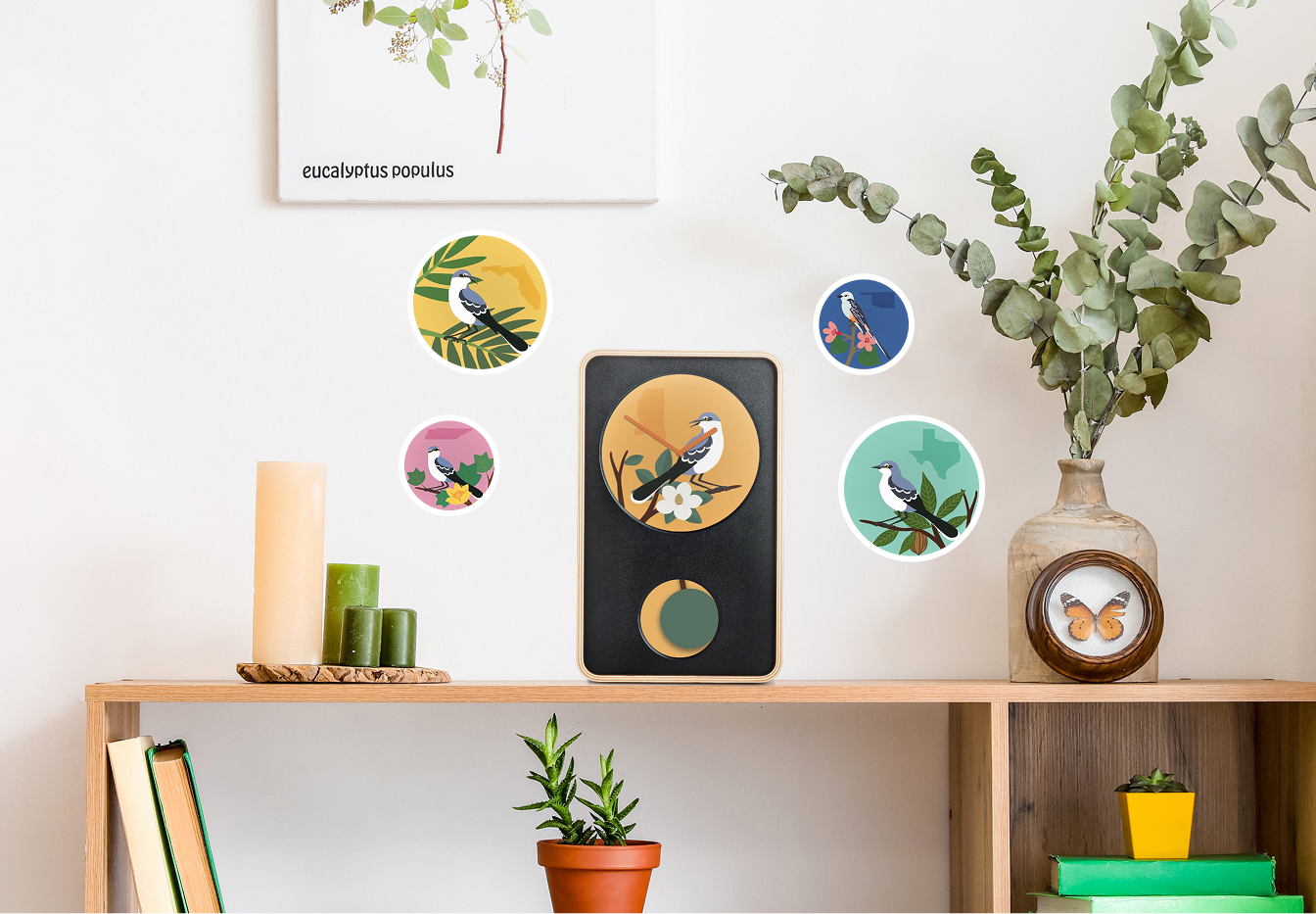
i'm not normally going to be in the habit of reviewing tech that i haven't used personally. however, i came across the klydoclock, and it looks pretty cool. i looked at a few youtube videos to check out the build quality and functionality, and it seems pretty legit. here's a youtube video to check out if you'd like. i think tech that delights people is the best kind of tech, and this product definitely seems to accomplish that. π«°
i currently have google fi, which is a mvno. if you have the unlimited premium plan, it automatically switches over the data to whatever network is available in 200+ countries.
however, if you find yourself traveling a lot, i would recommend getting an esim from ubigi. you can purchase cellular data from them in over 200+ countries. when i didn't have google fi, this is what i would use when i traveled, and it's great. instructions for installing the esim can be found here (iphone) and here (android).
i'm going to be going to japan for 4 weeks starting next month, and even though i don't play computer games anymore, i wanted to share a game that is set in the tokyo subway that looks interesting to me. it's not a typical game, doesn't take long to beat, requires focus and attention to detail, and is deceptively challenging.
one theme of the game is the concept of liminal spaces, a concept i find visually fascinating. you can explore more liminal space photography here β this website also happens to be my favorite photography website.
the game was originally designed for windows on steam, but they released an iPhone and iPad version. if the app version sucks, you can always play it on macOS via parallels desktop. instructions for installing windows with parallels can be found here. if you have an apple silicon mac (m1/m2/m3/m4/m5 chip), you can download the arm-based iso here without paying for a license. otherwise, get the x64-based iso here.
in case you want to receive a notification whenever i make a post, i found a simple solution, however it requires a $2.99 monthly subscription.
what to do:
download the ifttt app and sign up for an account. pro-tip: i always select 'sign up with apple', and select 'hide my email'. this anonymizes you with services, and forwards any email correspondence to your actual apple id.
you'll need to allow notifications from the ifttt app (important, otherwise this won't work).
you'll need to subscribe to the $2.99/mo pro plan for more frequent polling intervals -- pro is 5 minutes, free tier is 1 hour. you don't need the pro+ plan for this functionality to work.
click 'create', to start a new applet.
on the next screen, select 'if this', and search for 'rss feed'.
select 'new feed item'.
enter the rss feed url *exactly* as it's written here: https://www.adampitchie.com/rss.xml
select 'then that (add)' and look for and select 'notifications'.
select 'send a notification from the ifttt app'.
if you want to receive a notification in do not disturb mode, select 'yes' for high priority. otherwise, leave as 'no'.
select 'create action'.
select 'continue'.
select 'finish'.
that's it! after you do this, you'll receive a notification every time i post. π
i'm constantly working with code/text. below are a few macOS keyboard shortcuts i use all the time to speed up my work. these shortcuts can be applied to anywhere system wide where there is editable text. the icons next to the spelled out keyboard keys are how they appear on your keyboard symbolically.
move cursor position to next word boundary: option + right arrow (β₯ β)
move cursor position to previous word boundary: option + left arrow (β₯ β)
select from cursor position to the next word boundary: shift + option + right arrow (shift β₯ β)
select from cursor position to the previous word boundary: shift + option + left arrow (shift β₯ β)
select from cursor to end of line: shift + command + right arrow (shift β β)
select from cursor to beginning of line: shift + command + left arrow (shift β β)
select from cursor to beginning of document: shift + cmd + up arrow (shift β β)
select from cursor to end of document: shift + cmd + down arrow (shift β β)
select from cursor to the line above: shift + up arrow (shift β)
select from cursor to the line below: shift + up arrow (shift β)
with the last two shortcuts (line by line selection), you can start with shift + up/down arrow, and then press the option (β₯) key to change to word boundary selection mid-selection.
my most common use is option + right/left arrow in conjunction with shift + option + right/left arrow since i'm constantly making typos.
if you ever need to concentrate and the noise cancellation of your headphones isn't good enough, apple built in background sounds in iOS and macOS. i use this frequently in tandem with noise cancellation so i can focus without any distraction. it completely blocks out any distracting sounds in my immediate environment.
macOS instructions can be found here. pro-tip: make sure you add background sounds to the menu bar for quick access (via the music notes icon). i prefer 'dark noise' as it's the most effective and least distracting.
iOS instructions can be found here. pro-tip: add the background sounds button to control center for quicker toggling. again, i prefer 'dark noise' as it's the most effective and least distracting.
1password - paid subscription - the best password manager. nice passkey integration. always use passkeys when available. it's better security, but also a better ux. make sure you set 1password on iOS as the default password manager. instructions here
apple calendar - i don't like google having my calendar data. you know, privacy.
apple music - paid subscription - best music service. make sure you upgrade your audio quality to lossless for a better listening experience. the airpods pro 2/3 can handle the bandwidth. i have streaming and download quality set to lossless. pro-tip: download songs for uninterrupted playback to counter any potential networking issues. instructions for the music app on iOS can be found here.
bend - paid - stretching and flexibility app. really nice.
chrome - free - i switch between chrome and safari. some websites still suck on safari.
claude - freemium - better than chatgpt. helpful for research and finding information. the paid pro plan gets you access to their flagship llm models. totally worth it.
google maps - free - works almost everywhere. almost. i also use it to to research restaurants, as it has the most data/photos to validate food quality. but you know, privacy.
proton authenticator - free - always use 2FA with an authenticator. never use SMS verification when possible. make sure to add icloud synchronization in case you lose/switch your device. not as good as google authenticator, but you know. privacy.
safari - default - i switch between chrome and safari. some websites still suck on safari.
shortcuts - free - i created a custom shortcut to toggle noise cancellation & transparency on my airpods. i added the shortcut to my lock screen for quick access. i don't always like to squeeze my airpods stems to toggle noise control. i also set up some custom automations to geofence caltrain stops for reminders. better than using 3rd party transportation apps for this functionality.
1password - paid subscription - the best password manager. nice passkey integration. always use passkeys when available. it's better security, but also a better a ux. make sure to add and use the chrome or safari browser extension.
alfred 5 - freemium - better than apple spotlight. i like to not use the mouse as much as possible.
apple calendar - i don't like google having my calendar data. you know, privacy.
apple music - paid subscription - best music streaming platform. again, make sure you upgrade your streaming and download audio quality to lossless for a better listening experience. if you want to get real nerdy, get an apogee duet 3 with the apogee duet 3 dock and good headphones. the dock is useful to keep cabling to a minimum. for headphones, i recommend the beyerdynamic dt 1990 pro mkii. if you want the most elegant solution, get the apogee duet symphony desktop instead of the duet 3 + the dock. instructions for setting up apple music's audio quality for macOS can be found here.
caffeinated - useful for when you want to keep your screen on and not have it dim/lock.
chrome - free - the better browser. but you know, privacy.
claude desktop app - freemium - better than using the browser. the paid pro plan gets you access to their flagship llm models. totally worth it.
figma - i switch between figma and framer for website and app design. figma is better for app design.
framer - framer has different strengths than figma. framer used to be good for designing and prototyping apps and their ui interactions/animations. no longer the case. solely for websites now.
hidden bar - keep items in the menu bar, but hide them. more useful then just completely disabling them from the menu bar in system settings.
linear - again, a modern project management with clean ux/ui.
mimestream - the best native macOS gmail app. has push built in by default. almost all other options use polling, so thereβs a delay compared to the instant nature of push.
rectangle pro - paid - quickly move and position windows around your screen with your keyboard. good for people with ocd. again, i like to use the mouse as little as possible for speed.
ticktick - personal task management. used to use omnifocus for gtd, but this is better.
dev tools
claude code - cli version of claude code. enables faster development cycles. easier to set up mcp servers and other stuff.
jupyter notebooks - the best way to experiment with code in a reproducible manner. you can break code down into chunks without running an entire file. pro-tip: use vscode jupyter notebook extension.
pyenv - simple python version management. necessary for when you have a bunch of different python versions. easy to set projects with default python versions. pro-tip: use claude to help you set up pyenv and pyenv-virtualenv correctly.
pyenv virtualenv - pyenv plugin to manage virtual environments. keeps global and project level dependencies separated and clean. perfect for people with ocd, or those who hate dependency hell.
vscode w/ claude code extension - the best product microsoft ever made. pro-tip: use claude for managing anything with git. pro-tip: use β+d for multi-cursor editing.